 Apache Geode
CHANGELOG
Apache Geode
CHANGELOG
Setting Up the HTTP Module for Tomcat
To use the Geode HTTP module with Tomcat application servers, you will need to modify Tomcat’s server.xml and context.xml files.
Configuration is slightly different depending on the topology you are setting up: peer-to-peer or client/server. Refer to Common Topologies for HTTP Session Management for more information.
Peer-to-Peer Setup
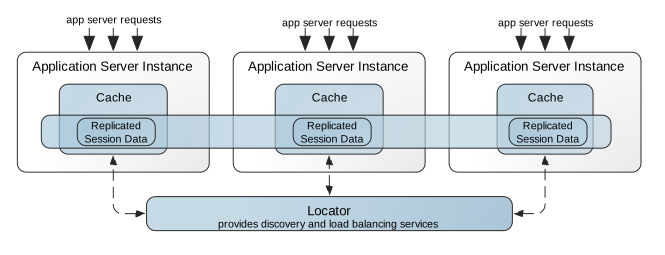
To run Geode in a peer-to-peer configuration, you must first start a Geode locator, then configure Tomcat to join the cluster as a peer member.
Starting the Locator
Start a Geode locator using gfsh:
$ gfsh start locator --name=locator1 --port=10334
The locator coordinates membership in the peer-to-peer cache.
Configuring Tomcat
Add the following line to Tomcat’s $CATALINA_HOME$/conf/server.xml within the <Server> tag:
<Listener className="org.apache.geode.modules.session.catalina.PeerToPeerCacheLifecycleListener"
        locators="localhost[10334]" />
Add the following line to $CATALINA_HOME$/conf/context.xml within the <Context> tag:
For Tomcat 10.1 and later (Jakarta EE 10):
<Manager className="org.apache.geode.modules.session.catalina.Tomcat10DeltaSessionManager"/>
Note: Tomcat 10.1+ implements Jakarta EE 10 with Servlet 6.0 specification and uses the Jakarta EE namespace (jakarta.servlet.*) instead of the legacy javax.servlet.* namespace. Ensure your application has been migrated to Jakarta EE 10 before using this module. Support for Tomcat 7, 8, and 9 has been discontinued.
Client/Server Setup
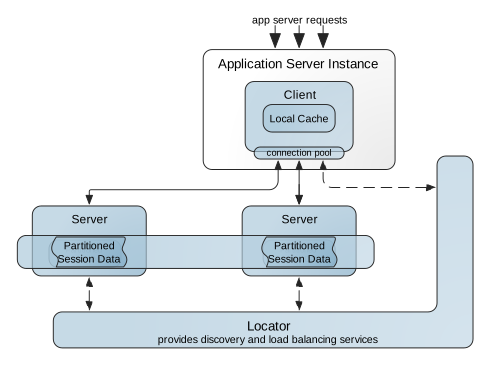
To run Geode in a client/server configuration, the application server will operate as a Geode client. To do this, add the following line to $CATALINA_HOME$/conf/server.xml within the <Server> tag:
<Listener className="org.apache.geode.modules.session.catalina.ClientServerCacheLifecycleListener"/>
Add the following line to $CATALINA_HOME$/conf/context.xml within the <Context> tag:
For Tomcat 10.1 and later (Jakarta EE 10):
<Manager className="org.apache.geode.modules.session.catalina.Tomcat10DeltaSessionManager"/>
Note: Tomcat 10.1+ implements Jakarta EE 10 with Servlet 6.0 specification and uses the Jakarta EE namespace (jakarta.servlet.*) instead of the legacy javax.servlet.* namespace. Ensure your application has been migrated to Jakarta EE 10 before using this module. Support for Tomcat 7, 8, and 9 has been discontinued.
The application server operates as a Geode client in this configuration.
Setting the CLASSPATH
Set the CLASSPATH environment variable to include Tomcat and Geode module libraries. This CLASSPATH is required when starting the locator and server.
For a client/server setup using Apache Tomcat v10.1+ and Geode v2.x, the CLASSPATH should include:
export CLASSPATH=$CATALINA_HOME/lib/servlet-api.jar:$CATALINA_HOME/lib/catalina.jar:$CATALINA_HOME/bin/tomcat-juli.jar:$GEODE_HOME/lib/geode-modules-2.x.x.jar:$GEODE_HOME/lib/geode-modules-tomcat10-2.x.x.jar
Example with explicit paths:
CLASSPATH=/opt/apache-tomcat-10.1.x/lib/servlet-api.jar:/opt/apache-tomcat-10.1.x/lib/catalina.jar:/opt/apache-tomcat-10.1.x/bin/tomcat-juli.jar:/opt/geode-2.x/lib/geode-modules-2.x.x.jar:/opt/geode-2.x/lib/geode-modules-tomcat10-2.x.x.jar
Starting the Locator and Server
Start the locator and server using gfsh with the configured CLASSPATH:
$ gfsh start locator --name=locator1 --classpath=$CLASSPATH
$ gfsh start server --name=server1 --locators=localhost[10334] --server-port=0 \
  --classpath=$CLASSPATH
Starting the Application Server
Once you’ve updated the XML configuration files, you are now ready to start your Tomcat instance. Refer to your application server documentation for starting the application server. Once started, Geode will automatically launch within the application server process.
Note: Geode session state management provides its own clustering functionality. If you are using Geode, you should NOT turn on Tomcat clustering as well.
Verifying that Geode Started
You can verify that Geode has successfully started by inspecting the Tomcat log file. For example:
15-Jul-2025 10:25:11.483 INFO [main] org.apache.catalina.startup.HostConfig.deployDirectory Deployment of web application directory [/Users/user/workspace/apache-tomcat-10.1.x/webapps/host-manager] has finished in [1,688] ms
15-Jul-2025 10:25:11.486 INFO [main] org.apache.coyote.AbstractProtocol.start Starting ProtocolHandler ["http-nio-8080"]
15-Jul-2025 10:25:11.493 INFO [main] org.apache.catalina.startup.Catalina.start Server startup in [11682] milliseconds
Verifying Cluster Topology
You can verify the cluster configuration by using gfsh to list cluster members.
For Peer-to-Peer Configuration:
$ gfsh -e "connect --locator=localhost[10334]" -e "list members"
You should see two members: the locator and the Tomcat server. The Tomcat server appears as a full member of the Geode distributed system.
Member Count : 2

   Name     | Id
----------- | -------------------------------------
locator1    | 192.168.1.100(locator1:12345:locator)
TomcatNode  | 192.168.1.100(67890)
For Client/Server Configuration:
$ gfsh -e "connect --locator=localhost[10334]" -e "list members"
You should see two members: the locator and the cache server. The Tomcat server does NOT appear in the member list because it operates as a lightweight client.
Member Count : 2

   Name     | Id
----------- | -------------------------------------
locator1    | 192.168.1.100(locator1:12345:locator)
server1     | 192.168.1.100(server1:67890)
Troubleshooting
Problem: Tomcat logs show ClassNotFoundException: org.apache.geode.modules.util.BootstrappingFunction (client/server only)
Solution: Ensure you started the locator and server with the --classpath option as shown in the client/server configuration. The Geode server must have access to the session module classes.
Problem: Tomcat fails with “Connection refused” when connecting to locator (peer-to-peer only)
Solution: Ensure the Geode locator is running before starting Tomcat. Use gfsh list members or lsof -i :10334 to verify the locator is listening on the configured port.
Problem: Web applications fail to deploy with session manager errors
Solution: Check that you completed all installation steps, including copying all JAR files from $GEODE_HOME/lib to $CATALINA_HOME/lib as described in Installing the HTTP Module for Tomcat.